Tuesday, September 28, 2021

EduProtocol- Internet Scavenger Hunt


Internet Scavenger Hunt

EduProtocol Book 1 Chapter 21

Robert Marzano discusses Internet Scavenger Hunt EduProtocol. Most students love to be correct and find the answers. This is their time to shine and show what they find. This is a team effort or a solo project.

  Bonus points are given if students fine-tune their search using Google Search Hacks tips and tricks, and have the lowest number of returned searches shown on their screenshot.

Goals:

  • Learning how to search the web.
  • Learn a few search terms at a time (suggestion + and -)
  • Younger students need to use a visual (picture) search
  • Find a specific website(s) you want them to use
  • Older students should learn to use specific formats like .ppt.
  • Cross-reference
  • Identify Writing Style
  • Source

Check out Stephanie Howell and the GEG team's video and the example on how to create your scavenger hunt!

Internet Scavenger Hunt Example


Thursday, September 23, 2021

The NEW Quiz Feature in Discovery Education

The NEW Quiz Feature in Discovery Education


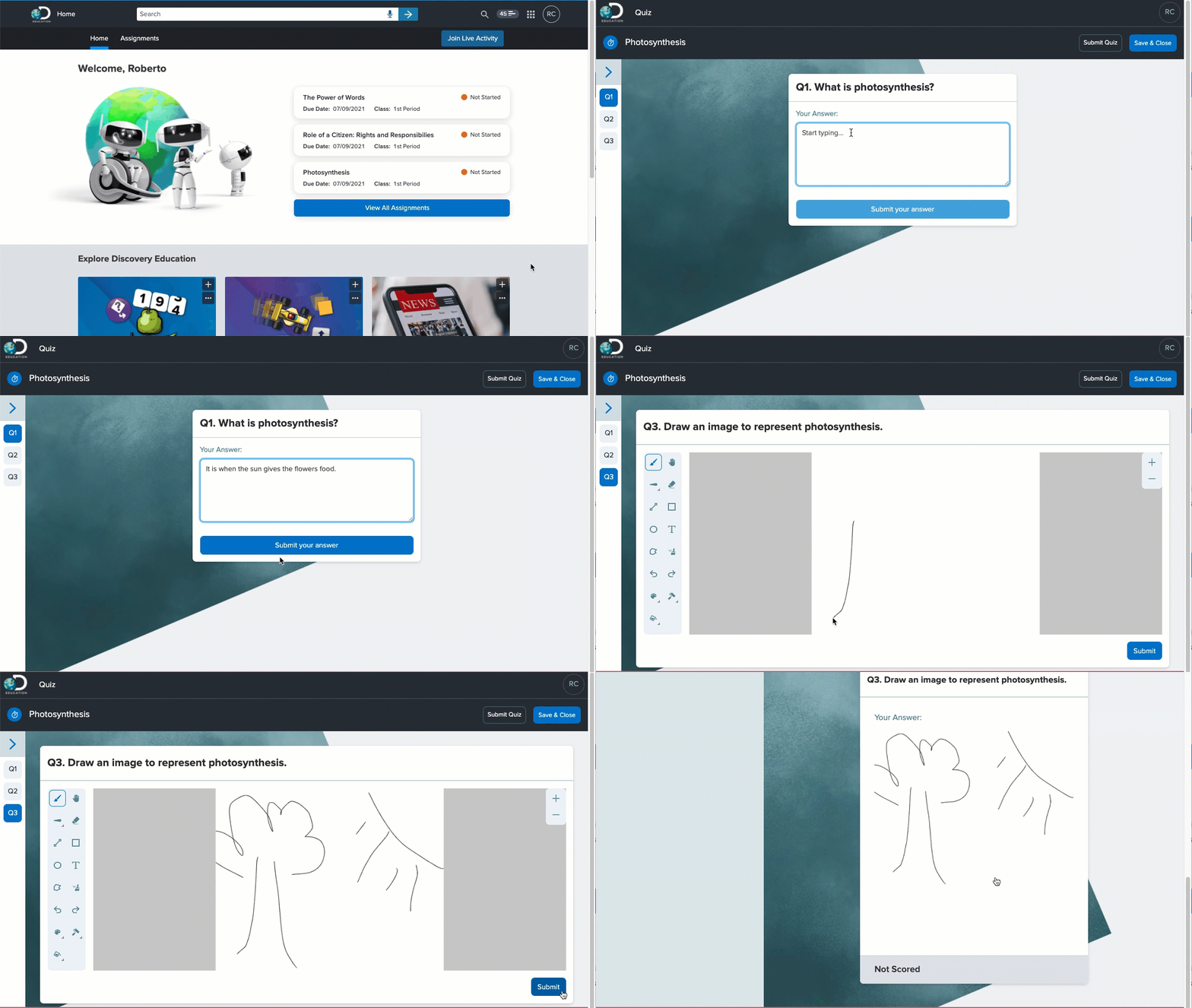
Discovery Education has made many updates and improvements since last year. They have also built out many ready-to-use activities that you can easily edit to meet your scholars' needs. Arguably the best update is the new Quiz feature in Discovery Education! It is like an awesome mix of Edpuzzle, ClassFlow, & Pear Deck rolled into one easy-to-use tool.

Video Quiz

Create a Video Quiz to ask comprehension questions at points you choose within a video clip. Assess scholars using the following response types:
  • Short Answer
  • Poll
  • Multiple Choice

Standard Quiz


Create a Standard Quiz to assess scholars using these response types:
  • Short Answer
  • Poll
  • Multiple Choice
  • Multiple Select
  • Drawn response
  • Annotate (uploaded image)
  • Audio response

Live Quiz


Launch a Live Quiz to verbally ask scholars a question that they type a response to in real-time. At any point during a Live Quiz, you have the option to launch an Exit Ticket to gauge how scholars are feeling about the quiz. 

Assign a Quiz or Launch a Quiz

A scholar can launch an assigned quiz (video or standard quiz) from their DE homepage and complete it at their own pace. 


When you launch a quiz live, you
 have two options: Teacher-Led, where you control the pace, or Student-Led, where scholars progress at their own pace. You can invite scholars with a link or with a join code. During a live quiz, you can view results as they come in live and grade them then, or wait until the end. 

View Quiz Results

For all quiz types, you can mark the results correct or incorrect as they come in during the quiz. For live quizzes, this gives the scholar the opportunity to see their results at the end of the quiz. Or, you can wait until the quiz is ended and then view and score the results in the Results Dashboard. If you do not review results at the end of the quiz, you can view them at any time by clicking the Quiz tile on their My DE homepage and then selecting Results from the left sidebar. Quiz Results can be exported to a .CSV file or Excel File with a breakdown of how each scholar did on each question. 

At the top of the quiz results dashboard, you can see a class summary showing the high and average scores, percentage of engaged scholars, number of responses, number of questions, and how long the quiz took. Then, you can look at the results. There are three views: 

  • Report View- which allows you to see a quick glimpse of how students performed on questions throughout the quiz. You can look for trends that will help you make instructional decisions from this summary. 

  • Question View- which shows each question and the number of responses. You can expand each question to see all scholar responses and mark responses as correct or incorrect. 

  • Student View- which shows each scholar and the number of responses and correct answers they have. You can expand each scholar to see all of their responses to all questions. You can also score scholar answers here. 


Thursday, September 9, 2021

Tab Resize: a Chrome Extension

 Tab Resize: a Chrome Extension

I love the tab resize extension! It has saved my life more than once. With one click I can split my screen into 2, 3, or 4 windows. This is wonderful for situations when you need to see information from different sources at one time.  

Click here to open the extension page and click 'Add to Chrome'. 


You can choose the number and size of the tabs you would like to see at one time! 


Friday, May 28, 2021

Keeping your school Google files!

Girl looking through binoculars saying Ohh LALA

 
Transfer Drive Google Content

At the end of the year, we get a lot of questions on how to move your Google files to your own account. This can be done one of two ways, either sharing your documents with another account and then making a copy or by using Google Takeout. 


The Easy Way

Here is a link to the video and blog post by Alice Keeler on how to share the documents with yourself and then making a copy. It also includes how to use her sheet to make a copy of the whole folder at one time (there is a cost but may be worth it if you have a lot). You do not need the sheet from Alice Keeler but it is a HUGE timesaver for someone who has a lot of files to transfer.  

More Complicated Way

The other option is Google Takeout but those files are not Google Files. The Google Classroom export is a JSON file. (What is that?) You can not upload that into a new Google Classroom. 

 WHAT FILES DO YOU OWN?

Just a reminder, things you create on your school computer and/or on your school Google account you do not own. They are the property of your school district. Also, student data is protected so only move things that do not contain student data!

Wednesday, May 5, 2021

Zoom Immersive View

 Zoom Immersive View


The latest update of Zoom has an awesome new feature: Immersive View! Immersive View will allow you to choose and place participants into a scene in your Zoom. 

Step 1: Update Zoom

Open Zoom on your Desktop. Log in with Google, if necessary. Click on your profile picture and click on Check for Updates.

If the Zoom update loads and installs, move on to step 2. 

If you have a new YCSD issued Lenovo laptop and you get an error message stating that Zoom Updates are blocked by Admins, follow these directions:
  1. Search Add or Remove Programs in the Taskbar then click Open

  2. Scroll to the bottom, click on Zoom & click Uninstall then click Uninstall 

  3. To reinstall Zoom, click on this link
  4. Click Keep 

  5. Click the arrow, then click Open 

  6. Click Sign in, then click Sign in with Google & choose your email account


  7. Note: You will need to add any custom Zoom Backgrounds again if you choose to use them.

Step 2: Update Zoom Settings

Go to Clever (or YCSD Staff Logins) and log in to Zoom. Click on Settings on the left side. 
Either scroll down to In Meeting (Advanced) and find Immersive View or click Ctrl+F and type immersive in the search box. Toggle Immersive View ON. 

Step 3: Turn on Immersive View in Zoom

Start a Zoom meeting then click on View in the top right corner. Now in addition to Gallery View and Speaker View you have the option to choose Immersive Scene.

Once you click on Immersive Scene, you will have the option to choose the scene you want to use. 
You can see that in the bottom right corner of each scene it will show you how many people will fit in each Immersive Scene. You also have the option to Automatically place participants into the scene or Manually place participants where you want them. Anyone who has Zoom updated to 5.6.3 or higher will see the Immersive Scene that the host has set. Everyone else will see a regular Zoom view. 

To add your own Custom Immersive Scene:


As always, let us know if you have any questions or need any help. Feel free to drop into our Virtual Office Hours or send us an email. 


Tuesday, May 4, 2021

End of the Year Clean Up!

bitmoji pushing a broom cleaning

Create a template course

Are you teaching the same subject or grade level next year? Make your life easier by creating a template course for the following year by copying your Google Classroom. All of your topics, syllabus, and assignments will copy over as drafts and your Google Classroom will be ready for the following year. Students cannot see drafts on their end, so you can push out the assignments when you are ready next year.

Making a copy is as easy at 1-2-3:


1. Go to Google Classroom


2. Click on the 3 dots on the class card


3. Click copy

Archive your Google Classes!

There are a few ways to clean up your Google Workspace before you leave for the summer. One of the most important is to ARCHIVE your Google classroom. It is important because students can still communicate through Google Classroom even if you are not actively using it. This makes archiving is VERY important!

Eric Curts' blog CTL ALT Achieve gives great directions on how to archive an old class:


When you are done with a class, a good way to clean up Classroom is to archive the old classes. Archiving is a process that:

    Trash Can Clip Art

    Removes
    the class from your main Classroom home page (making your page cleaner and easier to navigate).

emoji freeze face
Freezes
the class so no new changes can be made to it (especially helpful if you choose not to remove students from the old classes)


recycle arrows icon
Still allows you to copy and reuse old posts and assignments from the archived class in your new classes.

Don't worry if you ever need to un-archive a class, you can!


Wednesday, April 21, 2021

Sticker Mania Chrome Extension

 Sticker Mania Chrome Extension


The Sticker Mania Chrome extension lets you put stickers over sites across the web. Just click Add to Chrome then Add Extension. You can find and pin this Chrome extension under the puzzle piece at the top right of your Chrome browser. 


Choose from the large existing sticker library in Sticker Mania, or add your own stickers (even GIFs). Stickers remain until you right-click on them to remove them (or Clear them in the extension). This can be fun for remote or hybrid learning or for increasing the engagement of your scholars. Keep them guessing and add a little fun to your day by adding the Sticker Mania Chrome extension!